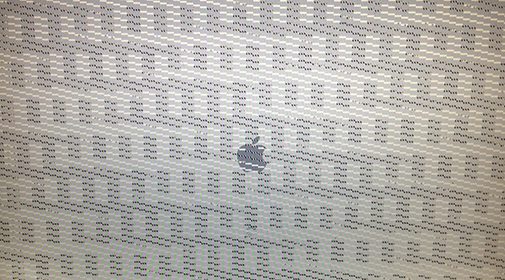
Pixelated Display
Usual IMac Graphics Card Issues
Although iMacs are renowned for their dependable performance, graphics card problems can occasionally arise with them. The following are some typical issues with graphics cards that iMac users could run into:
- Graphic artifacts or distortion: This problem appears as strange visual components on the screen, like pixelation, flickering, lines, or distorted color. It may be the result of a graphics card malfunction or driver problems.
- Black screen or freezing screen: Occasionally, when using the iMac, the screen may become black or freeze. A graphics card issue, such as overheating, incompatible drivers, or a faulty card, may be the cause of this.
- Graphical errors that can occur when playing games or watching videos: These errors can include stuttering, frame drops, and visual tearing. These problems may stem from outdated drivers, insufficient performance from the graphics card, or software incompatibilities.
- System crashes or restarts: A graphics card issue may be the cause of your iMac's frequent crashes or unplanned restarts. Crashing can happen when doing graphically intensive tasks or even when using the device normally.
- Inability to detect or display content on external monitors: A graphics card problem may be the cause of your iMac's inability to detect or properly display material on external monitors. This could involve problems like flickering, improper resolution, or no display at all.
- Kernel panics: The iMac must shut down due to serious system faults known as kernel panics. Hardware problems or malfunctioning graphics card drivers may be the cause of them.
- Fan noise and overheating: Overheating may result from an improperly cooled graphics card. The iMac's fans might start to spin noisily as a result, trying to release heat. In addition, performance deterioration and possible graphics card damage can result from overheating.
Troubleshoot the IMac Graphics Card
- Update macOS: Make sure the operating system on your iMac is the most recent version. Software updates frequently bring bug fixes and better support for graphics cards.
- Update graphics card drivers: Use the built-in Software Update tool in macOS or visit the manufacturer's website to look for updated graphics card drivers.
- Reset SMC and NVRAM: Resetting the System Management Controller (SMC) and the non-volatile RAM (NVRAM) can help fix some graphics-related problems. See the official Apple support manual for comprehensive information on carrying out these resets.
- Track system temperatures: To keep an eye on the temperatures of the various parts of your iMac, such as the graphics card, use third-party software. Unusually high temperatures could be a sign of a cooling problem. Make sure there are no debris or impediments obstructing the iMac's vents.
- Seek expert assistance: For additional diagnosis and repair, it is advised that you visit the IRepair Center or get in touch with Apple Support if the issues continue or if you think there may be a hardware malfunction.