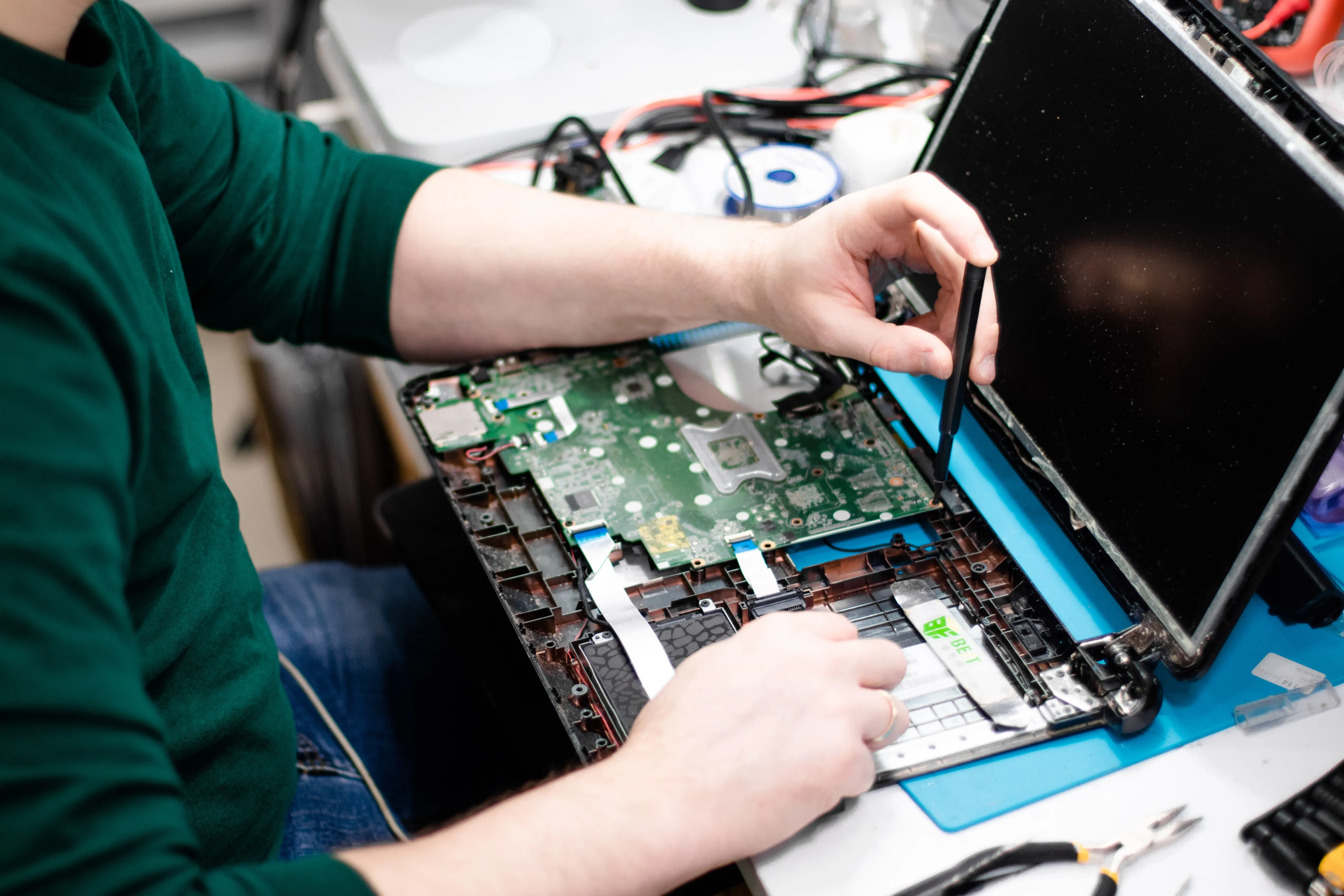
Microphone
Usual iMac Microphone Issues
- You cannot be heard by the other party.
- The volume on the microphone is too low.
- No audio could be heard on Google Meets, Skype, or Zoom.
Diagnose the iMac microphone
It can be annoying if your iMac's microphone stops working, particularly if you use it for voice recording or video conferences. To find the source of the problem and maybe solve it, there are a few troubleshooting techniques you might try. Here are several actions that you can take:
- Verify the settings for the microphone: First, make sure that your system options have the microphone enabled. Navigate to the System Preferences menu via the Apple menu, then select Sound. Verify that the appropriate microphone is chosen and that the volume is adjusted under the Input tab.
- Try testing it with a different app: If your microphone isn't working with a certain software, such Zoom or Skype, try testing it with Voice Memos or QuickTime Player. This will assist you in figuring out whether the microphone or the app is the problem.
- Restart the computer: Occasionally, even restarting the computer will resolve minor microphone problems.
- Check for software updates: Make sure your iMac has the most recent software upgrades by checking for updates. Click on Updates in the App Store to see if there are any new releases.
- Check the connection: Make sure the connection is secure if you're utilizing an external microphone by checking it. In case it's a USB microphone, attempt to use an alternative USB port.
- Reset the PRAM/NVRAM: Occasionally, microphone problems can be resolved by resetting the PRAM/NVRAM. To accomplish this, switch off your iMac, turn it back on, and then hit and hold the Command, Option, P, and R keys at the same time. When you hear the startup sound twice, release the keys after holding them down.
- Reset the SMC: The System Management Controller (SMC) should be reset if none of the aforementioned procedures work. This can aid in resolving hardware-related problems. To accomplish this, turn off your iMac, then press the power button while holding down the Shift, Control, and Option buttons. Let go of all the keys and restart the iMac.
"In the case that none of these solutions resolve the problem, the microphone may have a hardware problem. In this situation, it might be necessary for you to bring your iMac to an IRepair Center or approved repair facility for diagnosis and repairs."