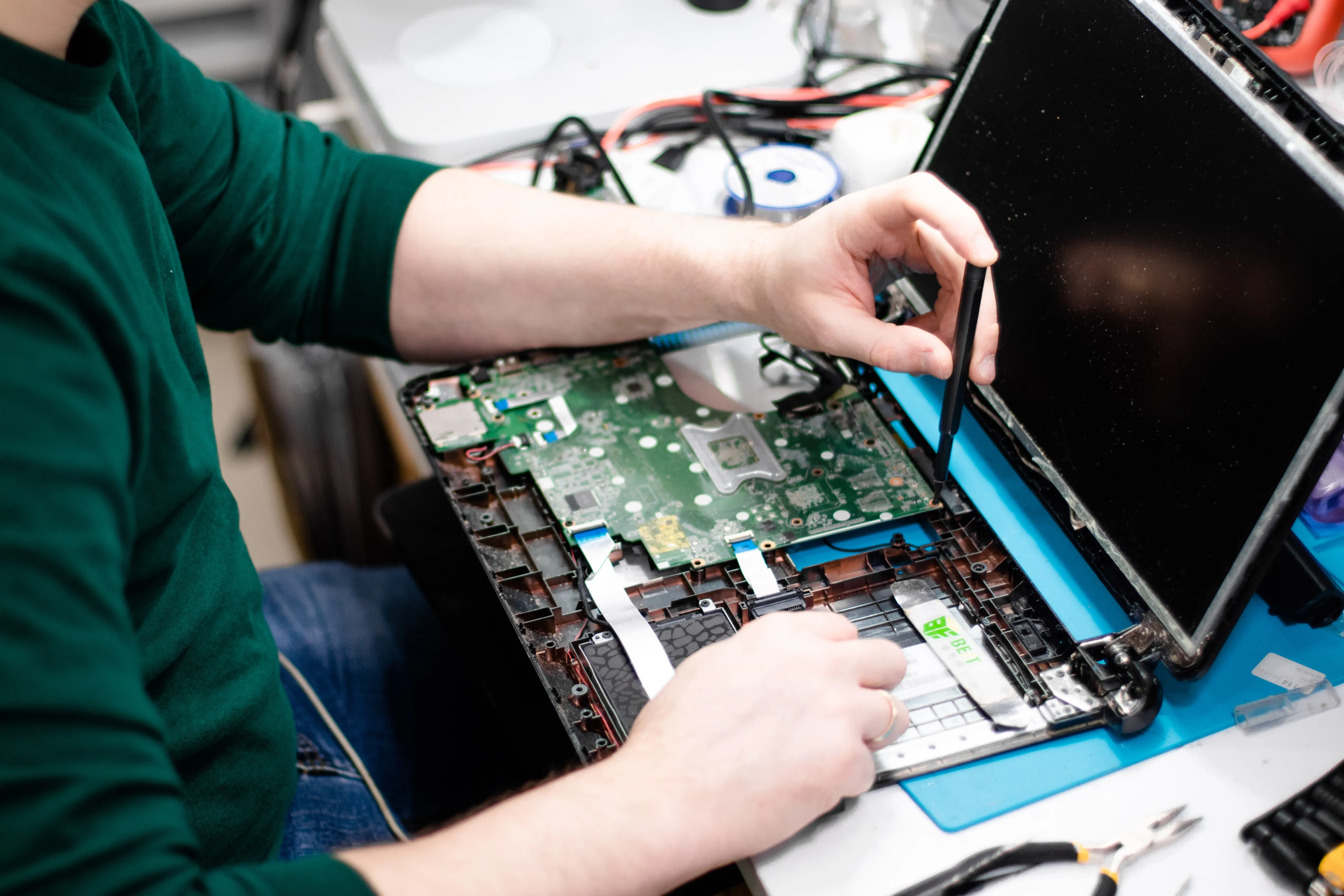
Cooling Fan
Usual iMac Cooling Fan Issues
- iMac is Overheating
- Processor / Cooling Fan is Faulty
- Fan is Clog with Dust
- Air Vents are blocked
- Thermal / Cooling Paste dry up
- No Maintenance was done over the years
- Heavy usage (3D Rendering / Video Rendering / Gaming)
Diagnose the iMac cooling fan issue
It's critical to take quick action to fix any cooling fan problems you may be having with your iMac in order to avoid overheating and possible computer damage. The following troubleshooting procedures can be used to locate and fix cooling fan problems:
- Check fan functionality: Initially see how the fan behaves to check its functionality. After turning on your iMac, listen for the fan to spin and feel for airflow around the vents. The fan itself or its connection may be malfunctioning if you cannot hear the fan or see insufficient airflow.
- Clean the fan and vents: Over time, dust and debris can build up on the fan and vent blades, reducing their effectiveness. Turn off your iMac and gently clean the fan and vents using a soft brush or compressed air. To prevent any electrical accidents during this operation, make sure the iMac is unplugged.
- Reset your iMac's System Management Controller (SMC): The SMC controls all power-related operations, including fan control. Fan speed and control problems may be solved by resetting the SMC. Depending on the type of iMac, different steps must be taken to reset the SMC. For every individual model, Apple offers comprehensive instructions on their support website.
- Examine any software-related problems: The fan on your iMac may run excessively due to certain software programs or procedures. Keep an eye on your iMac's activity monitor to see whether programs or processes are using up a lot of system resources. Check to see if the fan speed and noise have decreased by shutting down any unneeded programs or processes.
- Use Apple Diagnostics or the Apple Hardware Test: The company offers integrated diagnostic tools to help find hardware faults, such as fan difficulties. Hold down the D key (or Option + D) as soon as your iMac restarts to launch Apple Diagnostics or Apple Hardware Test, depending on your iMac model. To run the diagnostic test and look for any hardware-related problems, adhere to the on-screen directions.
- Monitor internal temperatures: Install third-party software programs that can track and show the interior temperatures of the parts that make up your iMac in order to monitor internal temperatures. By doing this, you may ascertain whether the fan is operating correctly and whether the temperature is within allowable bounds. iStat Menus, Macs Fan Control, and Intel Power Gadget are a few of the often used features.
- Contact Support: It is advised that you visit the IRepair Center or contact Apple Support for assistance if the problem continues or if you are unable to diagnose and fix it on your own. They possess the knowledge and tools necessary to identify and fix any underlying hardware problems with your iMac's cooling fan.
Keep in mind that technical knowledge is necessary to work on the internal parts of an iMac. To avoid doing more harm, it's essential to get professional help if you don't feel comfortable with these troubleshooting procedures or if your iMac is still covered by warranty.